Coordinator Dashboard
The Dashboard is the landing page for Coordinators. It serves as the command center for managing the initial phases of the project lifecycle: Team Formation, Mentor Assignment, and Problem Statement Approval.
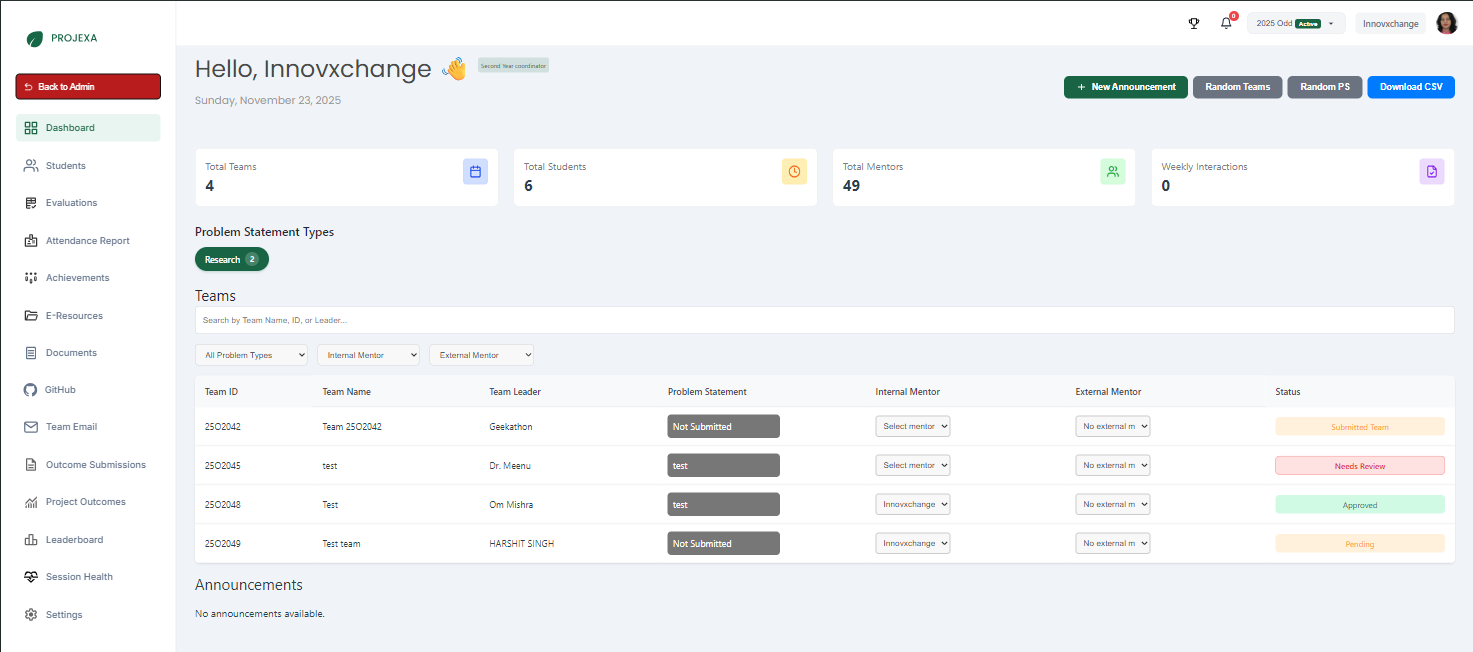
Key Metrics
At the top of the dashboard, you can see a snapshot of the session's current status:
- Total Teams: Number of teams formed.
- Total Students: Total students enrolled in the session.
- Total Mentors: Number of available mentors.
- Weekly Interactions: Count of interactions scheduled/completed this week.
Team Formation Workflow
The team formation process involves actions from both students and coordinators.
1. Student Actions
- Create/Join: Students log in and either create a new team or join an existing one using a team code.
- Status - Pending: When a student creates a team, it appears as Pending on the dashboard.
- Status - Team Submitted: Once the team is fully formed (members added) and finalized by the students, the status changes to Team Submitted.
2. Coordinator Actions
Once teams are submitted, the Coordinator takes over:
Filtering Teams
Coordinators can filter the team list to find specific groups:
- All Problem Types: Filter by project category (e.g., Research, Startup).
- Internal/External Mentor: Filter teams based on mentor assignment status:
- Has Internal/External Mentor: View teams that already have a faculty/industry mentor.
- No Internal/External Mentor: View teams that need a mentor assigned.
Mentor Assignment
Coordinators must assign a mentor to guide the team.
- Locate the team in the list.
- Internal Mentor: Select a faculty mentor from the dropdown.
- Best Practice: Assign mentors based on their specialization and the team's project domain.
- External Mentor: (Optional) Assign an industry mentor if applicable.
Problem Statement Review
Teams submit a Problem Statement (PS) for approval. The Coordinator (or the assigned Mentor) must review it.
- Status - Needs Review: The team has submitted a PS.
- Review Process:
- Click on the team or the status to view the PS details.
- Approve: Accept the PS if it is feasible and relevant.
- Suggest Changes: Reject the current version with specific feedback/comments. The team must revise and resubmit.
- Delegation: If the PS is outside your domain, assign an appropriate Mentor first. The Mentor can then review and approve the PS.
Automated Tools (Random Allocation)
To ensure no student is left behind, Coordinators have access to "Random" allocation tools:
- Random Teams: Automatically groups individual students (who haven't joined a team) into new teams. This respects constraints like section and program.
- Random PS: Automatically allocates pre-approved problem statements to teams that haven't selected/submitted one. This ensures every team has a project to work on.
Quick Actions
- New Announcement: Post updates for all(both students and mentors), students or mentors
- Download CSV: Export the current list of teams and their statuses.